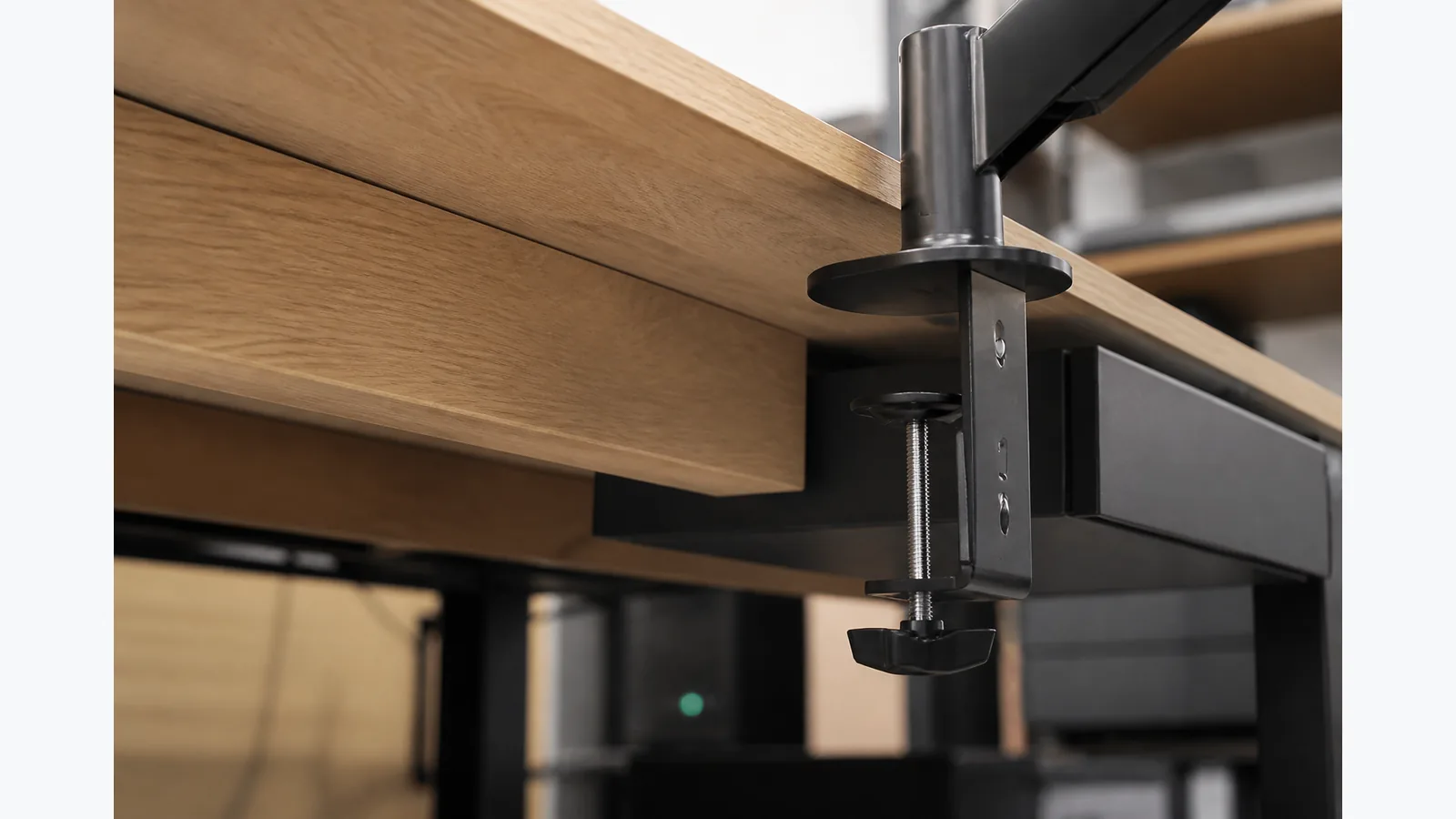
monitor arm clamp won't fit desk: diagnose the edge before buying hardware
If your monitor arm clamp won't fit desk, do not force it; check what is blocking the edge first, because a rear lip, underframe, drawer or cable tray can stop the clamp from seating properly, and the safe fix is usually a different position or a grommet route if the desk and arm instructions allow it.
Identify whether thickness, a rear lip, underframe, drawer or cable tray is blocking the clamp
Look at the desk edge as if the clamp were already in place. A lip at the back of the top, a support rail, a drawer runner or a cable tray can reduce the space the clamp needs. The key question is not only how thick the top is, but whether the clamp can close cleanly without hitting anything underneath.
Check the product's installation guidance and the desk's own structure before you decide it is the wrong mount type. BenQ and Fellowes both note that clamp fitting depends on desk thickness, rear clearance and unobstructed underside space.
Measure the real top and underside contact zones
Measure the exact spot where the clamp would touch, rather than relying on a catalogue picture or a single width figure. Take the top thickness, then check the underside for braces, lips or trays that change the usable clamping zone.
If the underside is uneven, the clamp may look like it should fit but still fail to seat securely. In that case, note the narrowest point and compare it with the arm's installation instructions before you continue.
Try another structurally suitable position before changing mount type
Move the proposed clamp point along the rear edge until you find a section with better clearance and solid support. A small shift can avoid a drawer front, a centre brace or a cable tray while still keeping the arm where you want it.
Only use a new position if the desk remains structurally sound there. If you need to move a little left or right to clear an obstacle, that is usually safer than trying to make an unsuitable spot work.
Compare an existing grommet route only when the desk and exact arm instructions permit it
If the desk already has a suitable grommet opening, compare that option with clamping only when the desk and the arm's own instructions allow it. Grommet mounting can be a practical alternative when the edge is blocked, but it should match the product guidance rather than guesswork.
The current product details for the Suptek M252 show C-clamp or grommet installation, but its exact desk-thickness and under-desk clearance limits are not publicly guaranteed, so check the listing and instructions before choosing a route.
Reject packing blocks, frame cutting and forced clamping
Do not use packing blocks as a substitute for proper fit, do not cut the desk frame or remove structural hardware, and do not force the clamp shut. If the clamp does not seat naturally, the installation setup needs to change.
That caution is especially important when the desk has hidden structure underneath. If you need to defeat the obstruction rather than work around it, the position is wrong.
End with a photo-and-measurement checklist for product support
Before contacting support, gather clear evidence so the issue can be assessed quickly:
- Photo of the desk edge from the side showing the full clamp area.
- Photo from underneath showing any lip, brace, drawer or cable tray.
- Measurement of the top thickness at the exact clamp point.
- Measurement of the usable underside clearance at that same point.
- Photo of the proposed clamp position before any installation attempt.
- The product name or current product page you are using.
If you are comparing options, see the current product details for the Suptek M252 monitor arm.