Where to Put a Laptop With an External Monitor
Where to Put a Laptop With an External Monitor: 3 Layouts Compared
Not sure where to put your laptop with an external monitor? We compare beside, under the floated screen and closed in a stand — ventilation, webcam, desk depth.
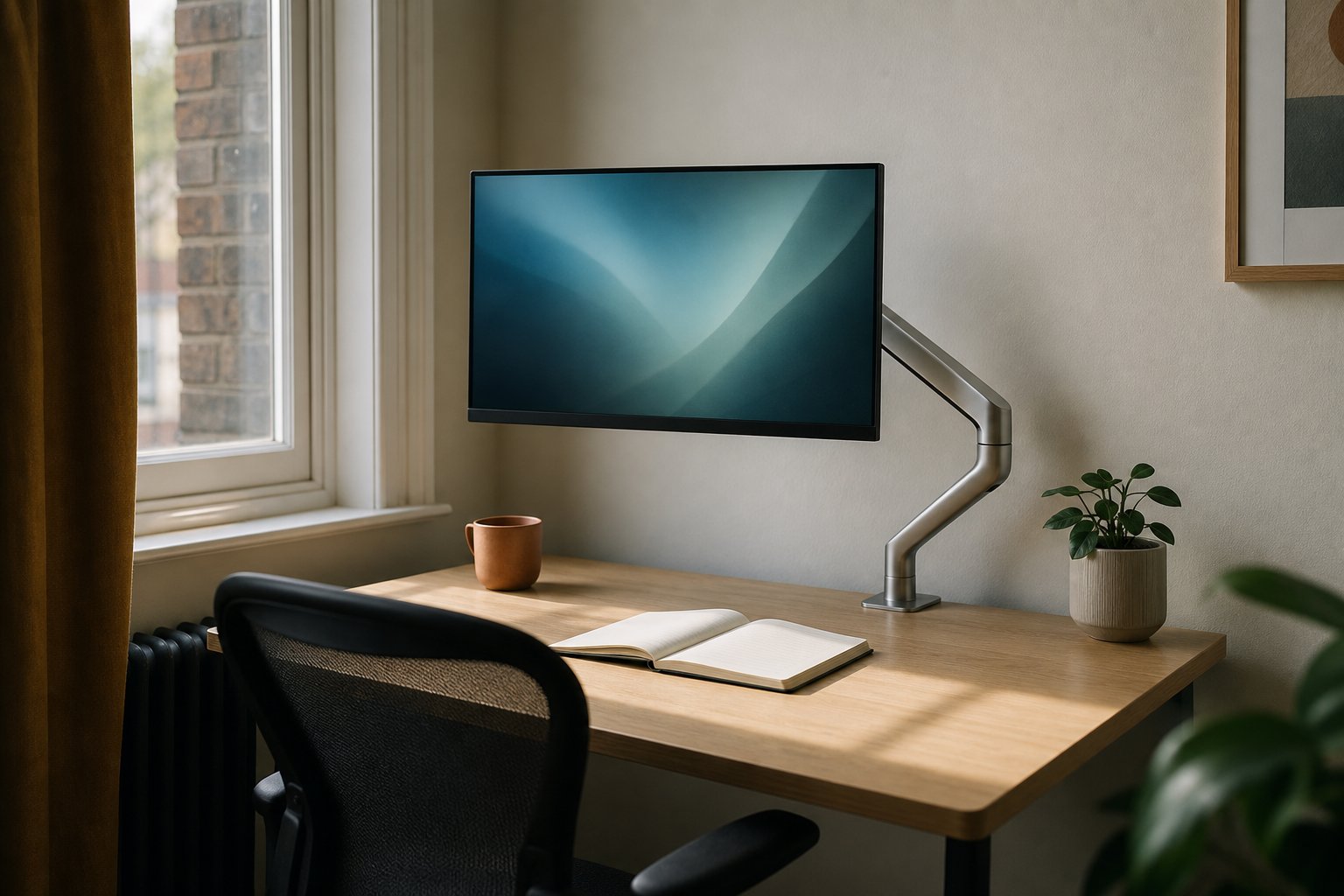
With an external monitor, a laptop belongs in one of three places: beside the monitor on a riser if you still use its screen, directly under the main screen if that screen floats on an arm, or closed in a vertical stand if you never look at it. Match the spot to how often you use the laptop’s display, webcam and ports — each layout trades desk space, ventilation and camera access differently.
A laptop is four things in one box — a screen, a webcam, a bank of ports and a small heater — and every placement serves some while sabotaging the rest. Here is how the three sensible layouts compare.
Beside the monitor, raised: the second-screen layout
If you still read or write on the laptop’s screen — chat, notes, a dashboard, the odd video call — put it beside the external monitor, raised on a stand and angled towards you.
Two pieces of official guidance shape this layout. The Canadian Centre for Occupational Health and Safety advises placing the screen you use most directly in front of you, with the secondary screen to one side and angled inwards, both about an arm’s length away. The Health and Safety Executive’s display screen equipment guidance adds that for prolonged use a laptop needs a separate keyboard and mouse so the machine itself can be raised; typing on it flat drags your head down all day. Lift the laptop until the top of its screen sits around the lower third of the main monitor, so switching between displays is a glance rather than a nod.
The cost is width. A 27-inch monitor is roughly 62 cm across, and a 14-inch laptop plus a sensible gap adds another 35 cm, which a one-metre desk will feel. In exchange the webcam survives at a usable height and every port stays within reach — the layout of least compromise when the room exists. Whatever you do with the laptop, the main screen’s position matters more; our monitor height ergonomics guide covers getting that right first.
Under the floated main screen
This layout only exists once your monitor is off its factory stand: the stand’s foot occupies exactly the rectangle of desk you are hoping to use, and most stands hold the panel too low anyway. Float the monitor on an arm, though, and the strip of desk under the screen becomes real space — we walk through everything that gets freed in our monitor arm desk space article.
With a gas-spring arm such as the Suptek arm — for 17–32 inch screens weighing 2–10 kg, on a 75 × 75 mm or 100 × 100 mm VESA plate — a 24–27 inch panel set for seated eye level leaves a low, wide bay underneath. Exactly how much clear air you get depends on screen size and your eye height — no published clearance table exists, so check your own panel’s bezel-to-VESA geometry against your eye line before committing, and leave a couple of centimetres of airflow gap above the laptop lid.
The bay has two uses. Closed, the laptop lies flat as a docked engine — leave a finger’s width of air around it and run everything on the big display. Open at a shallow angle, it works as a status strip for a calendar, a build log or a music player — things you glance at rather than read, because staring downwards for long spells undoes the gain of raising the main screen. The webcam is the casualty either way: an under-screen camera films your chin, so regular callers need a monitor-top webcam or a switch to the beside layout.
Closed in a vertical stand or a drawer
If you never look at the laptop’s screen, close the lid and take it off the working surface entirely. Clamshell mode is supported by macOS and Windows alike, and it buys the cleanest desk of the three layouts: one screen, one keyboard, no second glowing rectangle.
The one thing to take seriously is heat. Clamshell-safety guides such as Gadgital’s, and long-running Apple Stack Exchange threads on cooling, converge on the same points: a vertical stand beats lying flat because both large faces stay exposed to the air; the exhaust — usually along the hinge — should face upwards and stay unobstructed, since warm air rises; and fans work harder under sustained load with the lid shut. A drawer is fine for storage, but a laptop awake inside a closed drawer is slowly cooking itself, so power it down first.
Day to day, waking the machine is a tap on the Bluetooth keyboard, video calls need an external webcam, and the stand can live at the back corner or on a shelf — at which point cable reach becomes the real constraint. Mac owners have a dedicated walkthrough in our MacBook external monitor setup guide.
The decision table
| Question | Beside, raised | Under the floated screen | Closed in a stand |
|---|---|---|---|
| Laptop screen used daily? | Ideal | Glances only | Not available |
| Calls on the laptop camera | Workable height | Poor angle | Needs external webcam |
| Desk width it costs | About 35 cm | None | None |
| Desk depth it needs | Modest | Screen must float high | Minimal |
| Ventilation risk | None, lid open | Low — leave a gap | Low with a vertical stand |
| Ports and cable reach | Easiest | Good | Depends where the stand lives |
If two columns tie, weight the camera row by how many calls you take, and the width row with a tape measure rather than optimism.
Desk depth and cable reach, the quiet deciders
Two constraints decide which layout your desk can take. Depth first: on a 60 cm desk, an arm earns its keep by holding the panel partly beyond the rear edge, restoring forearm room a factory stand would steal — the same setback that makes the under-screen bay usable. Reach second: the display cable, power brick and any hub anchor the laptop within about a metre and a half of the monitor. A single USB-C lead to a dock collapses the tangle, and our cable management guide shows how to route the rest along the arm so nothing snags when the screen moves.
Frequently asked questions
Is it bad to keep the laptop closed all the time?
No — clamshell operation is a supported mode, not a hack. The practical cautions are thermal: keep the vents clear, prefer a vertical stand with the hinge upwards, and never run the machine inside enclosed furniture. If the fans sound strained, open the lid or improve the airflow.
Should the laptop sit on the left or the right of the monitor?
Whichever side keeps your most-used screen dead centre — beyond that, choose the side that suits your ports and mouse hand. If the laptop’s display and power connectors exit on its left edge, parking it to the monitor’s right sends cables trailing across the desk, so flip it. Angle it inwards in a shallow arc; either side works ergonomically.
Can I use the under-screen spot with the monitor’s factory stand?
Rarely. Most factory stands hold the bottom bezel only 5–10 cm off the desk, and the foot claims the space regardless. An arm removes the foot and lets you choose the height, which is what turns the strip under the screen from dead space into a laptop dock.